Google Docs does not ship with a built-in MLA template, so the formatting is done with a handful of menu settings. Once you set them, save the document as your personal template and reuse it for every paper.
Menu path: double spacing
1. Set the Page Up
Start with the document itself before you type any content:
- File → Page setup → Margins: set all four sides to 1 inch.
- Times New Roman, 12 pt: select all text, then choose the font and size in the toolbar.
- Format → Line & paragraph spacing → Double: applies double spacing to the whole document.
- Format → Line & paragraph spacing: keep Add space after paragraph off to prevent extra blank lines.
- Format → Align & indent → Indentation options → First line, 0.5 inches: sets the paragraph indent. Apply it to body paragraphs only.
These values match the core MLA margins, font, and spacing rules.
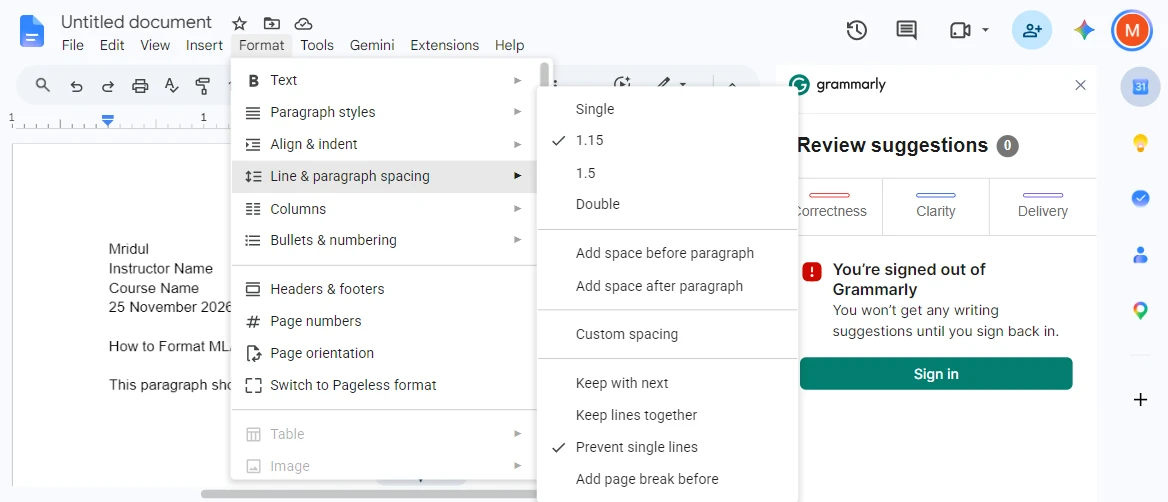 1 · Format
2 · Line & paragraph spacing
3 · Double
2. Add the First-Page Heading
On page 1, type four left-aligned lines at the top of the document, double-spaced like the rest of the paper. Do not bold, centre, or label any line.
Sofia Rubio
Professor Chen
English 101
12 October 2025
Use the Day Month Year date format with no commas and no abbreviations. See the MLA heading guide for every variation.
Menu paths: running header
3. Add the Running Header with Page Numbers
In current Google Docs, both tools live under the Format menu. Open Format → Headers & footers, leave Different first page unchecked, and click Apply. Click into the header area, type your last name, and press Tab twice to move to the right margin. Then open Format → Page numbers, choose Header, keep Show on first page checked, set the start number to 1, and click Apply.
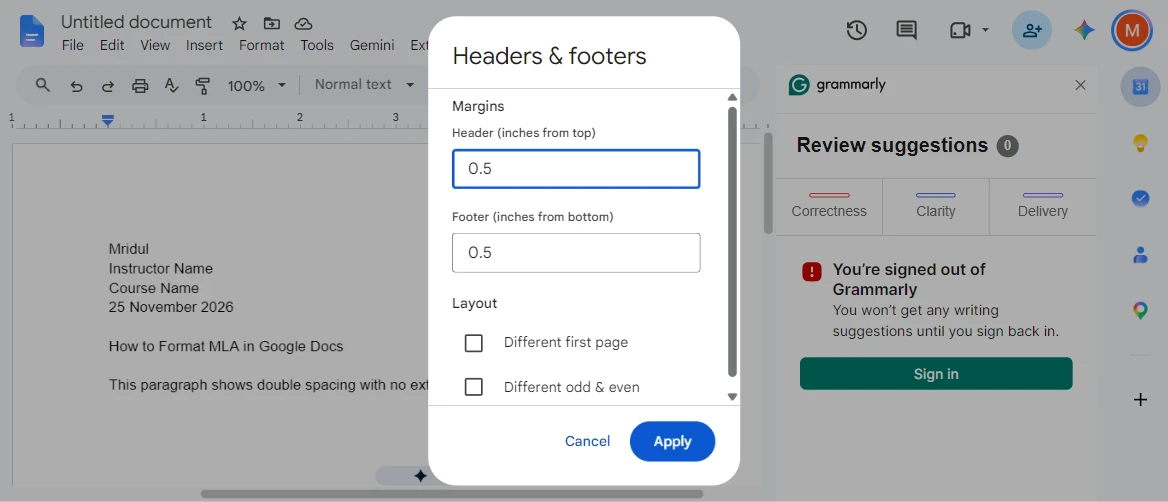 Keep unchecked
Apply
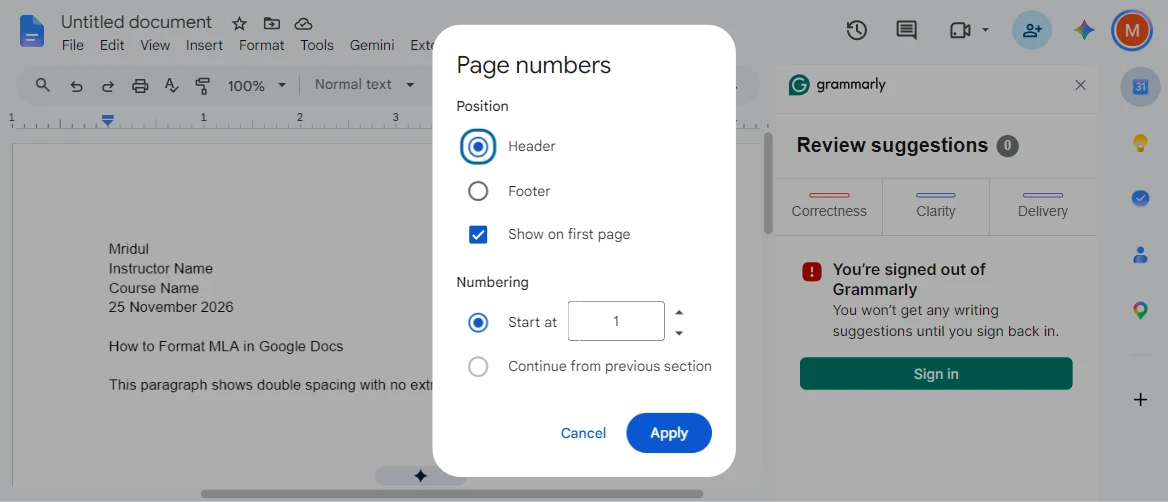 Position: Header
Show on first page: checked
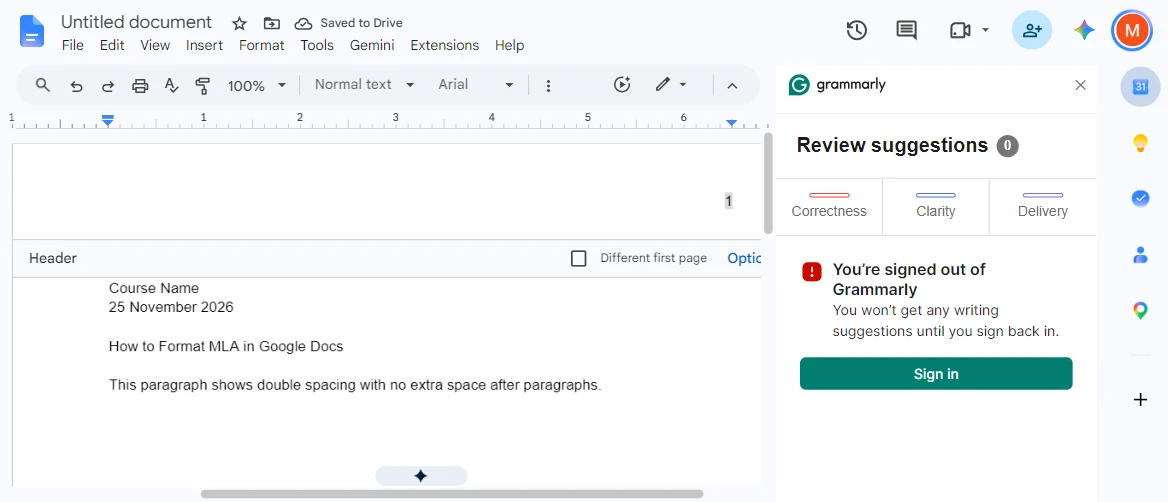
Rubio 1
The header sits about half an inch from the top edge. Google Docs uses that position by default. For a full explanation of the difference between this header and the first-page heading, read MLA heading vs header.
4. Center the Title and Write the Paper
Press Enter twice after the date, then type the paper title centred on the line. The title is plain text — no bold, italics, quotation marks, or larger font. Start the first paragraph on the next line, left-aligned with a 0.5-inch first-line indent. Do not add a blank line between paragraphs.
5. Format the Works Cited Page
Start Works Cited on a new page with the title centred. Select all entries and set Format → Align & indent → Indentation options → Special indent → Hanging, 0.5 inches. Alphabetize by the first element of each entry and double-space everything, including between entries.
If you would rather not build the list by hand, the Works Cited Generator creates correctly formatted entries you can paste in.
6. Save It as a Template
Once the setup is correct, choose File → Save as template. Every new paper will start with the right margins, spacing, font, indents, and header, so you only need to replace the heading details.
Common Google Docs Mistakes
- Leaving Different first page on, which removes the page number from page 1.
- Using the default space-after-paragraph setting, which creates triple spacing.
- Bolding or italicizing the title.
- Forgetting the first-line indent on body paragraphs.
- Using a title page when the instructor did not ask for one.
For an authoritative external reference, see MLA Style Center.
Frequently Asked Questions
Does Google Docs have a built-in MLA format template?
Google Docs does not include a built-in MLA template. You can set the rules manually in a few minutes, or use our free MLA formatter and paste the result into your document.
How do I double-space in Google Docs?
Select all text (Ctrl+A or Cmd+A), then go to Format → Line & paragraph spacing → Double. In the same submenu make sure Add space after paragraph is off so there are no extra blank lines.
How do I make a hanging indent in Google Docs for Works Cited?
Select your Works Cited entries, open Format → Align & indent → Indentation options, choose Special indent → Hanging, and enter 0.5 inches.
Where does the page number go in Google Docs MLA format?
In current Google Docs, use Format → Headers & footers, leave Different first page unchecked, and click into the header to type your last name. Then use Format → Page numbers, choose Header, keep Show on first page checked, and set the start number to 1.
Format Your Paper Automatically
Use our free MLA formatter to apply all these rules to your paper in seconds.
Open MLA FormatterExternal references
Independent external links; MLA Formatter is not affiliated with the Modern Language Association.
MLA 9 conventions summarized for students.
Independent tool; not affiliated with the Modern Language Association.